

It happens to almost every 3D artist at some point: you are working on a complex model, and suddenly you find that you can’t zoom in Blender anymore. You scroll the mouse wheel, but the camera feels stuck in place, or worse, it seems to move at a snail’s pace. This frustration usually stems from how the software manages the viewport navigation relative to the scale of your objects.
Understanding why this occurs is the first step toward getting your workflow back on track. By adjusting a few specific settings, you can regain full control over your scene and continue your creative process without further interruptions.
Understanding Clipping Distance and Viewport Issues
When you find that you can’t zoom in Blender, the most frequent culprit is the clipping distance. The viewport has a defined range—a near and far plane—within which it renders objects. If your camera reaches the near clipping limit, it physically cannot move any closer to the object, effectively stopping your zoom.
Adjusting View Clipping for Better Control
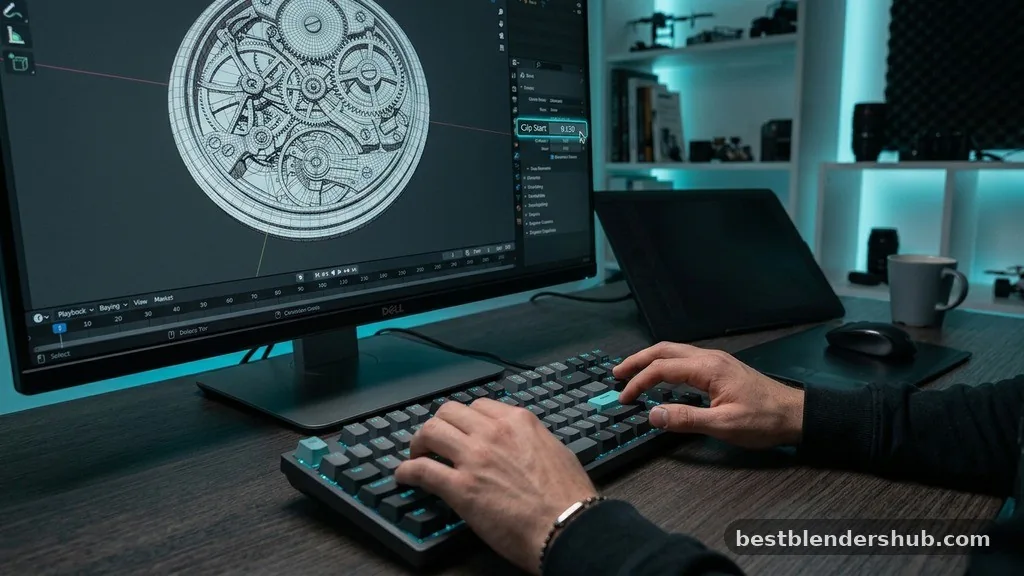
To resolve this, you need to modify the view clipping values in the sidebar. This tells the software how close or how far the camera is allowed to see. If you are working on something extremely tiny, like a microscopic texture detail, or something massive, like a planetary model, the default settings will often conflict with your zoom.
1. Press N to open the navigation panel on the right side of your 3D viewport.
2. Select the View tab to reveal the camera settings.
3.
Locate the Clip Start and Clip End fields.
4. Reduce the Clip Start value to a smaller number, such as 0.001 meters.
5. Increase the Clip End value if you are working on very large scenes.
By tightening these bounds, you allow the camera to get much closer to your geometry before the rendering engine cuts it off. This simple adjustment often solves the “stuck” zoom feeling instantly.
The Role of Perspective Mode and Focus
Sometimes the issue isn’t about the clipping distance, but rather what the camera is currently locked onto. If you are in perspective mode and have accidentally navigated far away from your model, the zoom function might feel unresponsive because the camera is trying to zoom into empty space.
Utilizing View Selected and Numpad Period
When you feel lost in 3D space, you need to re-center your perspective. The view selected command is the fastest way to reset your focus.
By pressing the numpad period key (or the . key on your keyboard), you tell the software to frame selected objects. This snaps your viewpoint directly to the geometry you have highlighted.
This action also resets the zoom pivot point. Once you have centered your view on an object, the mouse wheel will behave predictably again, as the camera is no longer orbiting a distant coordinate. If you do not have a numpad, you can find this command under the View menu in the top left corner of the 3D viewport, labeled as Frame Selected.
Comparing Navigation Methods
Different users prefer different ways to move around their scenes. Whether you use a standard mouse or a tablet, your setup can influence how the zoom behaves.
| Navigation Method | Common Zoom Issue | Recommended Fix |
|---|---|---|
| Scroll Wheel | Zooming is too slow or erratic | Adjust mouse wheel sensitivity |
| Trackpad | Sensitivity spikes or stalls | Enable Emulate 3 Button Mouse |
| Numpad Shortcuts | Camera focus is lost | Use Numpad Period to frame |
Addressing Mouse Wheel Sensitivity
If you can zoom, but the speed feels sluggish, your scroll wheel sensitivity might be the problem. Blender expects a certain level of physical input to translate into viewport movement. If your mouse is configured with high-precision scrolling, the software might interpret your input differently than intended.
Check your blender preferences to see if there are global overrides for input devices. Under the Input tab, you can sometimes find settings that affect how the interface responds to scroll events.
Additionally, ensure that zoom to mouse position is enabled. This feature allows you to zoom exactly where your cursor is pointing, which makes navigating complex meshes much easier than zooming toward the center of the viewport.
Common Topical Gaps in Navigation
Many users search for solutions when they can’t zoom in Blender, but they often miss the connection between the 3D cursor and the camera. The D cursor (3D Cursor) is often mistaken for a focal point. If your view is orbiting around the 3D cursor rather than your mesh, it can feel like you have lost the ability to zoom in effectively.
Managing the 3D Cursor
Always ensure your 3D cursor is placed at the origin of your model if you intend to orbit around it. You can reset the cursor to the center of the world by pressing Shift+C. This shortcut also resets the viewport view to include all objects in the scene.
If you have objects scattered across a massive coordinate range, Shift+C will zoom the camera out to show everything, which might make it look like you have lost your zoom capability. If this happens, select a single object and use the frame selected command to return to your workspace.
Camera Focal Length and Distortion
Another subtle factor that affects your perception of zoom is the camera focal length. While this primarily affects the internal camera object used for rendering, some users confuse the focal length settings with the viewport zoom. If you change the focal length in the View tab of the navigation panel, you are changing the lens distortion, not the physical position of the camera.
If you feel like you can’t zoom in Blender, verify that you haven’t accidentally set your focal length to an extreme value, such as 1mm or 500mm. A very wide focal length can make your objects look far away, even when the camera is physically close. Keep your focal length at a standard 50mm for the most natural navigation experience.
FAQ: Troubleshooting Zoom Issues
Why is my zoom suddenly stopping in the viewport?
This is usually caused by the view clipping distance being too large or hitting a geometric limit.
How do I fix the zoom speed if it feels too slow?
Try using the frame selected command (Numpad Period) to reset the camera pivot to your active object.
What does the Shift+C shortcut actually do?
It resets the 3D cursor to the center and fits all scene objects into your current view.
Is there a way to zoom toward my mouse cursor?
Yes, enable “Zoom to Mouse Position” in the navigation settings within the Blender preferences menu options.
Why does my camera orbit around a random point?
You are likely orbiting the 3D cursor; reset the view focus to your object using Numpad Period.
Can my mouse hardware cause zoom problems?
Yes, high-precision scroll wheels can sometimes cause erratic movement; check your mouse driver or system settings.
How do I adjust the near clipping plane?
Open the N-panel, go to the View tab, and decrease the Clip Start value to a lower number.
Navigating 3D space is a fundamental skill, and encountering a moment where you can’t zoom in Blender is simply a rite of passage for most digital artists. By keeping an eye on your clipping distance, using the frame selected shortcut, and ensuring your focal length remains balanced, you can avoid these common pitfalls. Remember that the viewport is a tool that requires specific parameters to function at its best, and these settings are always within your reach in the navigation panel.
Take a moment to adjust these values whenever your camera feels uncooperative. Once you master these viewport controls, you will spend less time fighting the interface and more time bringing your 3D projects to life.
If you find yourself stuck again, don’t hesitate to check your clipping bounds first. Happy modeling!

Jamesmathew is an expert Amazon affiliate writer, helping readers discover top products, smart deals, and practical buying guides through honest reviews and insightful content.