

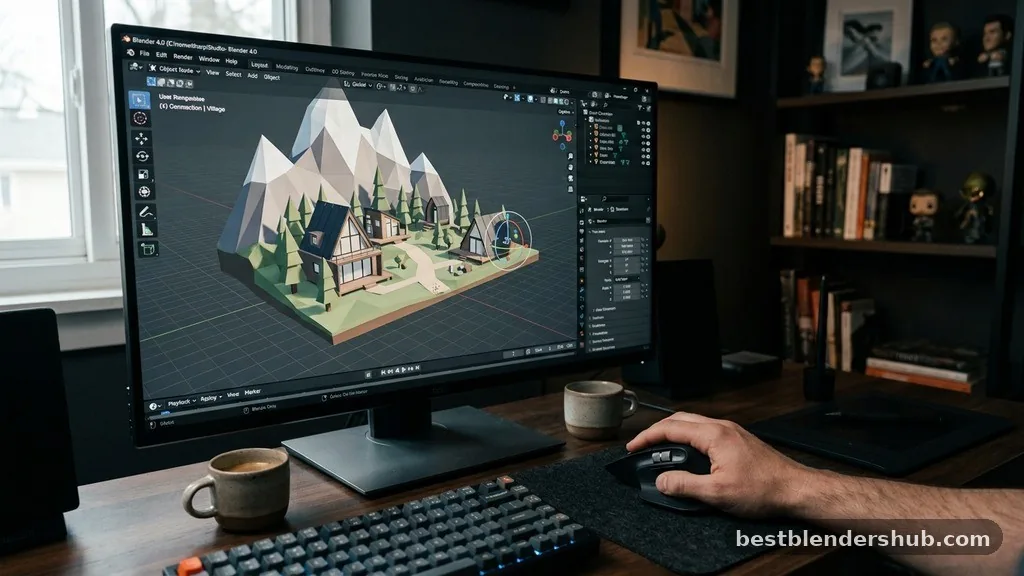
Mastering the art of how to pan camera in blender is the first step toward becoming proficient in this powerful 3D suite. Whether you are building complex architectural models or sculpting organic characters, moving your viewpoint effectively determines your workflow speed and overall project success.
When you understand the subtle nuances of viewport navigation, you stop fighting the software and start creating with fluidity. This article breaks down the essential techniques, hidden shortcuts, and configuration tweaks that ensure you never feel lost in the 3D space again.
Fundamental Viewport Navigation Techniques
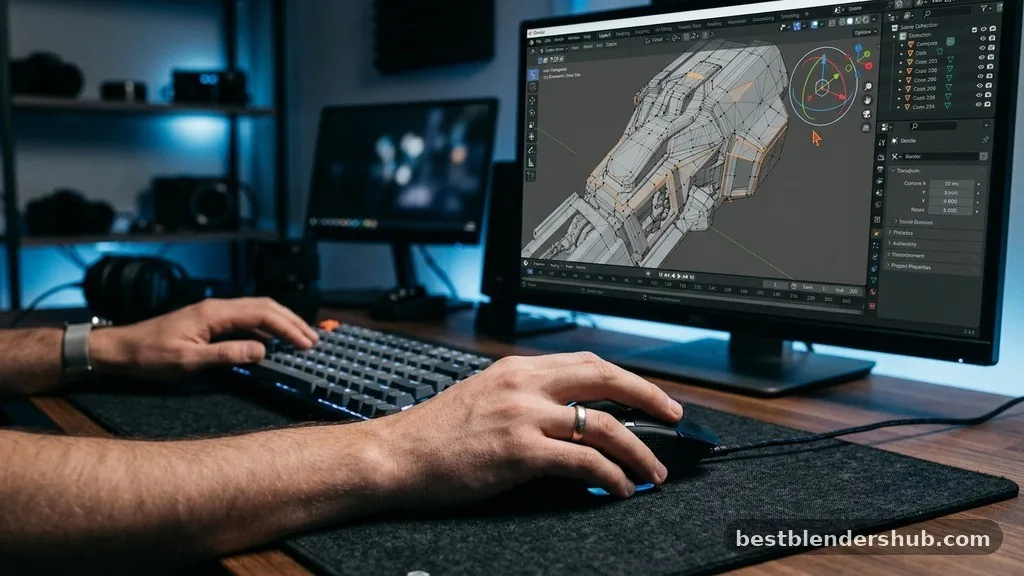
The most direct way to pan your view in Blender is by using the Middle Mouse Button (MMB). By holding down the scroll wheel and dragging your mouse, you shift your perspective horizontally and vertically across the grid.
This action is distinct from rotating, which requires the same button but a different motion, or zooming, which uses the scroll wheel itself. If you find your hand straining after long sessions, you are likely relying too heavily on clicking rather than utilizing the software’s built-in navigation presets.
For users without a physical mouse, Blender offers robust alternatives to ensure that paning camera in blender remains accessible. If you are working on a laptop, you can enable trackpad emulation within the user preferences menu.
Once active, this setting allows for two-finger gestures to mimic the standard middle-click behavior. You can also rely on the on-screen gizmo located in the top-right corner of the Blender interface, which provides clickable icons for panning, zooming, and rotating your workspace.
Keyboard Shortcuts for Faster Workflow
While mouse gestures provide tactile control, keyboard shortcuts significantly accelerate your movement through the 3D viewport. If your mouse is missing a middle button or you simply prefer keeping your hands on the keys, you can use the Shift key in combination with other inputs to translate your view. This approach is highly effective when you need to align your perspective with specific vertices or object origins.
The following table outlines the most common navigation inputs to help you master movement:
| Action | Mouse/Keyboard Input | Function |
|---|---|---|
| Pan View | Shift + Middle Mouse | Slide view horizontally/vertically |
| Rotate View | Middle Mouse | Orbit around the focal point |
| Zoom In/Out | Scroll Wheel | Move closer to or away from objects |
| Frame Selected | Numpad Period (.) | Focus camera on selected object |
Managing Camera View vs. Viewport Navigation
It is vital to distinguish between navigating the viewport and manipulating the actual camera view. When you pan your workspace, you are merely moving your eyes through the scene, not repositioning the render camera itself.
To see exactly what your camera sees, press Numpad 0. Once you are in this mode, you can lock the camera to the view by opening the sidebar with the ‘N’ key, navigating to the View tab, and checking the “Camera to View” box.
Once this box is checked, any movement you perform—panning, rotating, or zooming—will physically update the camera’s location and rotation in your scene. This is a common pitfall for beginners who accidentally move their render perspective while trying to adjust their working angle. Always remember to uncheck this box once you have framed your shot, or you risk ruining a carefully composed scene with a stray mouse movement.
Adjusting to Orthographic and Perspective Modes
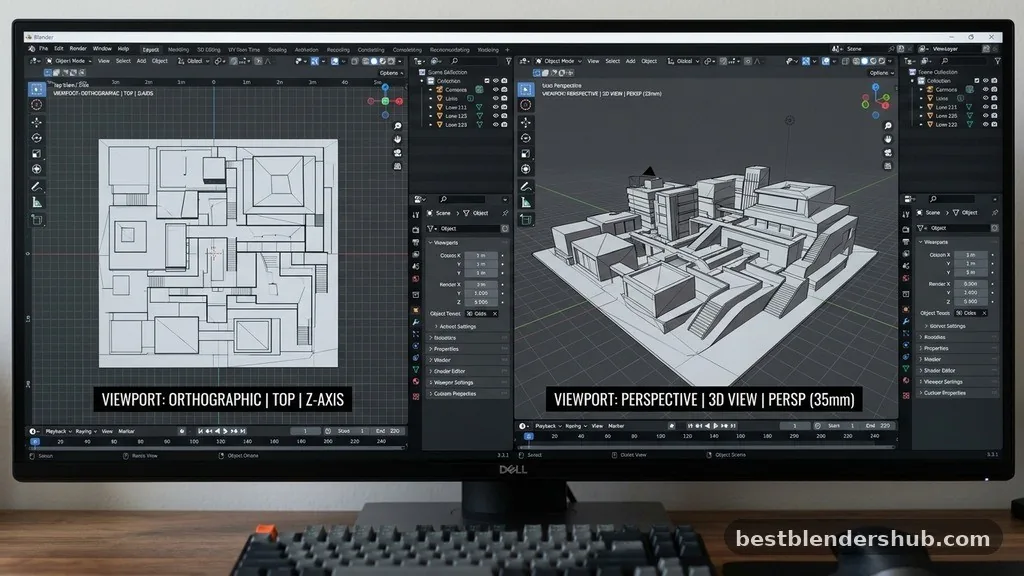
The way you pan often feels different depending on whether you are using perspective mode or orthographic projection. Perspective mode mimics human vision, where objects get smaller as they move further away, which can sometimes make panning feel slightly distorted at extreme angles. Orthographic projection, toggled with Numpad 5, flattens the scene, making it ideal for precise modeling and alignment tasks.
When working in orthographic view, panning feels perfectly linear and stable. Many professional artists switch to this view frequently to check for symmetry or to align objects along the X, Y, or Z axes. If you feel like your panning is “jittery” or inconsistent, check your viewport shading settings, as complex materials or high-poly counts can occasionally cause the viewport display to lag during navigation.
Solving Common Navigation Issues
If you find that your view is spinning wildly or refusing to pan correctly, you may have inadvertently changed your trackball navigation settings. In the preferences panel under Navigation, you can toggle between “Orbit” and “Trackball” styles. Most users prefer the standard Orbit style, but if your view feels erratic, resetting these preferences to their factory defaults is a quick fix.
Another common issue involves your view getting “stuck” or moving extremely slowly when you try to pan. This usually happens when your focal point is too far away or when you have accidentally zoomed into an object’s internal geometry.
To reset your perspective, select an object in your outliner and press the Numpad period key. This forces Blender to re-center your view on that object, immediately restoring fluid panning control.
Customizing Blender Interface for Efficiency
You don’t have to accept the default settings if they don’t suit your personal workflow. Blender allows you to remap every key command to fit your specific needs.
If you frequently need to move between different angles, consider setting up custom shortcuts for top, front, and side views. By modifying the Blender interface to highlight the tools you use most, you reduce the time spent searching through menus.
- Go to Edit > Preferences > Input to change your mouse emulation settings.
- Ensure “Emulate Numpad” is checked if you are working on a laptop without a dedicated number pad.
- Use the “Walk Navigation” mode (Shift + `) for a first-person gaming style movement.
- Save your preferences as the default so they persist across every new project file.
Answering Topical Gaps in Navigation
A frequent point of confusion for new users is why the camera seems to “pivot” around the wrong point. This occurs because the center of rotation is tied to the last object you selected or the current center of your viewport.
If you want to change your pivot point, simply select a new object and press the period key on your Numpad. This instantly updates the rotation and panning center to that object’s origin.
Another gap involves the use of “Camera to View” and the potential for losing your original composition. Many users worry that once they move the camera, they cannot return to their previous setup.
To prevent this, always create a camera marker or a bookmark in your timeline before making major changes. This ensures that you have a “safety net” if you decide that your previous angle was actually superior to the new one.
Conclusion
Developing a strong command over how you move through your 3D environment is essential for professional-level efficiency. By mastering the Middle Mouse Button shortcuts, understanding the difference between view navigation and camera manipulation, and utilizing the orthographic projection mode, you gain total control over your digital workspace. These skills allow you to focus on the creative aspects of your project rather than struggling with the technicalities of the software.
Take a few minutes to practice these movements in a blank file until they become second nature. You will find that your ability to iterate on designs improves dramatically when your hand-eye coordination with the viewport is seamless. Once you feel comfortable with the basics, explore the more advanced navigation settings in the preferences to further tailor the experience to your specific hardware and needs.
How do I pan the view in Blender?
Hold the Middle Mouse Button and drag your mouse to slide your view across the 3D space.
What does Ctrl+N do in Blender?
This shortcut opens a new file, essentially resetting your current project to a blank, default scene state.
What does Shift+C do in Blender?
It centers the 3D cursor at the origin and zooms out to fit all scene objects in view.
What does Ctrl+B do in Blender?
This command allows you to define a render border, limiting your viewport rendering to a specific area.
How do I pan on a laptop without a mouse?
Enable Emulate 3-Button Mouse in preferences and use the Alt key combined with left-click to pan.
Can I change the pan speed?
Blender does not have a direct “pan speed” setting, but you can adjust your zoom levels for more control.
Why is my camera not moving when I pan?
You are likely navigating the viewport, not the camera; lock the camera to view to move it.

Jamesmathew is an expert Amazon affiliate writer, helping readers discover top products, smart deals, and practical buying guides through honest reviews and insightful content.